
UE Quick Menu
The Quick Menu lets you invoke AI operations directly within the Unreal Engine Editor — no need to switch to the NexusFlow sidebar to type a request.
Overview
NexusFlow provides four entry points in the UE Editor, offering a total of 17 AI operations:
| Entry Point | Location | Operations |
|---|---|---|
| Blueprint Editor Right-Click | Right-click in the Blueprint graph | 13 operations |
| Content Browser Right-Click | Right-click on Blueprint assets | 2 operations |
| Blueprint Editor Toolbar | Toolbar inside the Blueprint Editor | 2 operations |
| Level Editor Toolbar | Main editor toolbar (NexusFlow button) | Connection status + quick access |
When you select an operation, NexusFlow automatically:
- Opens the sidebar (if hidden) and focuses the chat input
- Sends the preset prompt with full Blueprint context
- Displays the AI response in the sidebar
TIP
If the AI is currently processing a request, the Quick Menu will show a toast notification and discard the new prompt to avoid conflicts.
Blueprint Editor Right-Click Menu
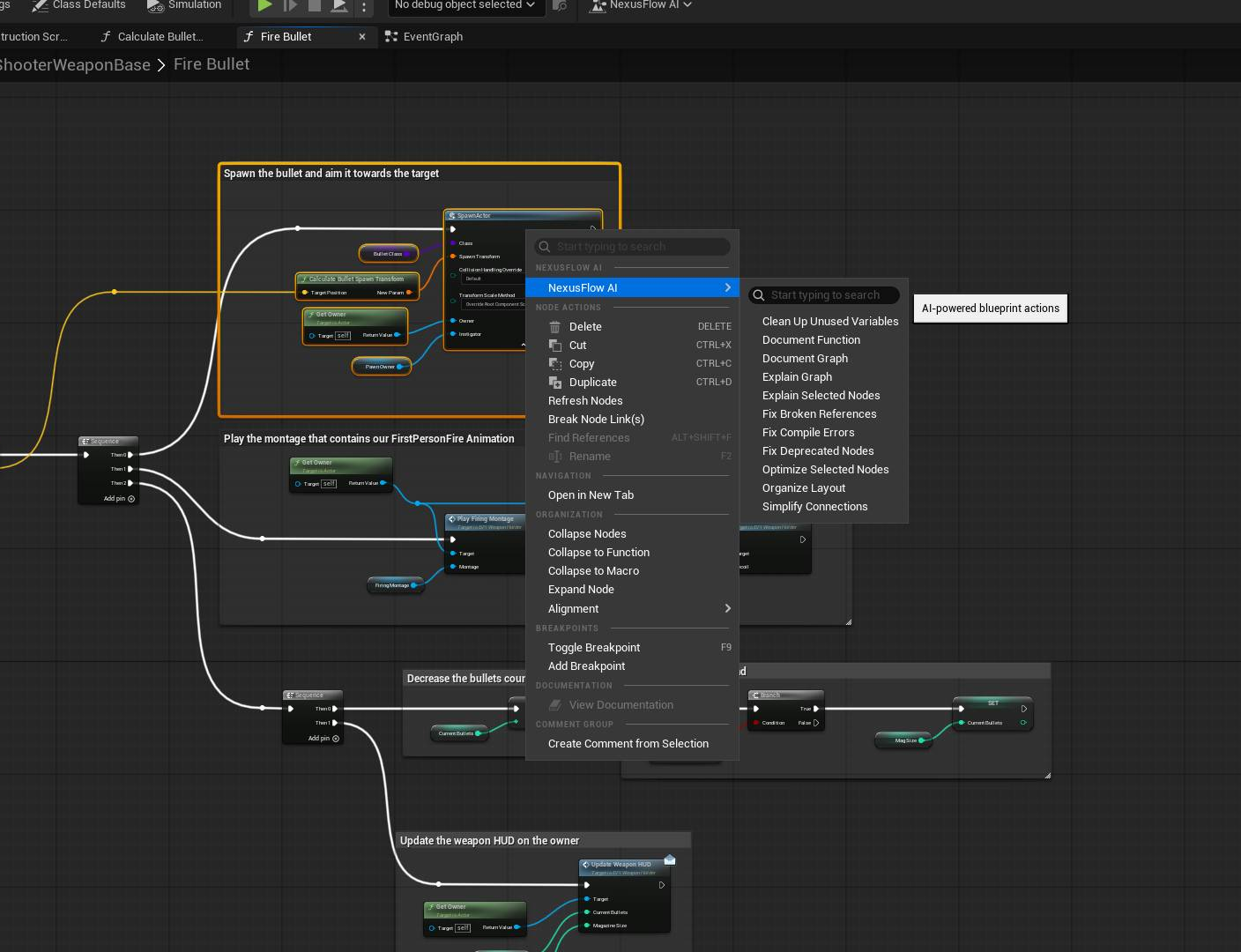
Open a Blueprint, optionally select one or more nodes, then right-click in the graph area. The NexusFlow submenu appears with operations filtered by your selection.
Selection Mode
Each operation has a selection mode that controls when it appears in the menu:
| Mode | Meaning | Example |
|---|---|---|
any | Always visible, regardless of selection | Explain Graph, Organize Layout |
single | Visible only when exactly 1 node is selected | Explain Selected Nodes |
multi | Visible only when 2 or more nodes are selected | Extract to Function |
Available Operations (13)
Explain & Analyze
| Operation | Selection | Description |
|---|---|---|
| Explain Graph | any | Analyze the entire graph's logic and data flow |
| Explain Selected Nodes | single | Deep-dive into what the selected node does |
Optimize & Refactor
| Operation | Selection | Description |
|---|---|---|
| Optimize Selected Nodes | single | Suggest performance or readability improvements |
| Extract to Function | multi | Extract selected nodes into a reusable function |
| Extract to Macro | multi | Extract selected nodes into a macro |
| Organize Layout | any | Reorganize node positions for better readability |
| Simplify Connections | any | Reduce unnecessary wires and reroute nodes |
Document
| Operation | Selection | Description |
|---|---|---|
| Document Graph | any | Generate documentation for the entire graph |
| Document Function | any | Generate parameter and return value documentation |
Clean Up & Fix
| Operation | Selection | Description |
|---|---|---|
| Clean Up Unused Variables | any | Identify and remove unused variables |
| Fix Compile Errors | any | Analyze and suggest fixes for compile errors |
| Fix Broken References | any | Find and resolve broken asset/node references |
| Fix Deprecated Nodes | any | Identify deprecated nodes and suggest replacements |
Content Browser Right-Click Menu
In the Content Browser, right-click on one or more Blueprint assets to access NexusFlow operations at the asset level.
| Operation | Selection | Description |
|---|---|---|
| Explain Blueprint | any | Analyze the overall structure and purpose of a Blueprint |
| Document Blueprint | any | Generate comprehensive documentation for a Blueprint |
INFO
These operations work on the entire Blueprint asset, not individual nodes. They're ideal for getting a high-level understanding of Blueprints you didn't write.
Blueprint Editor Toolbar
When a Blueprint is open in the editor, two buttons appear in the Blueprint Editor toolbar (top bar):
| Operation | Description |
|---|---|
| Review Blueprint | Perform a quality review of the current Blueprint (structure, naming, best practices) |
| Summarize Blueprint | Generate a concise summary of what the Blueprint does |
These toolbar buttons are always visible — they don't depend on node selection.
Level Editor Toolbar
The NexusFlow button in the Level Editor main toolbar provides quick access and connection status at a glance.
Connection Status
The button icon changes based on whether the NexusFlow desktop app is running:
| Status | Icon | Click Behavior |
|---|---|---|
| Connected | Color icon | Opens the sidebar and focuses chat input |
| Not Connected | Gray icon | Shows a notification with download links |
Not-Connected Notification
When NexusFlow is not running, clicking the toolbar button displays a notification popup with:
- A message explaining that the NexusFlow desktop app is required
- GitHub download link — latest release page
- Mirror download link — accelerated download for users in China
WARNING
The Level Editor toolbar button is a quick-access shortcut, not an AI operation trigger. To use AI operations, go through the Blueprint Editor right-click menu, Content Browser right-click menu, or Blueprint Editor toolbar.
Language Support
Quick Menu item names are displayed in the UE Editor's language setting:
| Language | Example |
|---|---|
| English | Explain Graph |
| 简体中文 | 解释图表 |
| 繁體中文 | 解釋圖表 |
The language is determined by UE's locale, not the NexusFlow app's language setting.
Context Information
When a Quick Menu operation is triggered, the following context is automatically collected and sent to the AI:
- Blueprint Asset Path — The location of the current Blueprint in the project
- Graph Name — The graph currently being edited (e.g., EventGraph, a function graph)
- Selected Node IDs — All currently selected Blueprint nodes (if any)
- Extension Point — Which menu triggered the operation
WARNING
The Quick Menu requires the NexusFlow desktop app to be running and connected to UE. If the connection is lost, menu items will still appear but operations won't be sent.