
Settings
NexusFlow's Settings page features an iOS-style navigation design with 5 configuration categories. Click the gear icon at the top of the sidebar to access Settings.
AI Models
Managing AI models is the first step to using NexusFlow. Here you can add, validate, and manage multiple AI models.
Model List
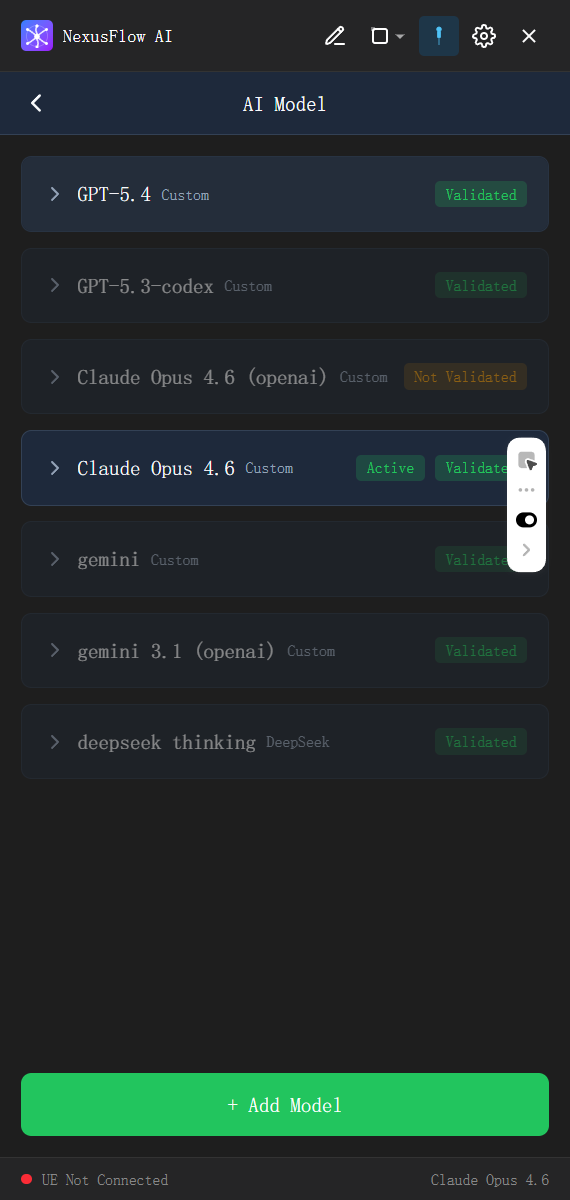
Added models are displayed as cards, each showing:
- Model name and Provider badge
- Validation status: Whether the connection test has passed
- Default indicator: Marks the currently active default model
Click a card to expand and view details including model identifier, API Key (masked), Base URL, Temperature, and Max Tokens.
Model Actions
For each added model, you can:
- Validate: Test whether the API Key and connection are working
- Set as Default: Use this model as the default for AI conversations
- Delete: Remove a model configuration you no longer need
Adding a New Model
Click the "Add Model" button to open the configuration form:
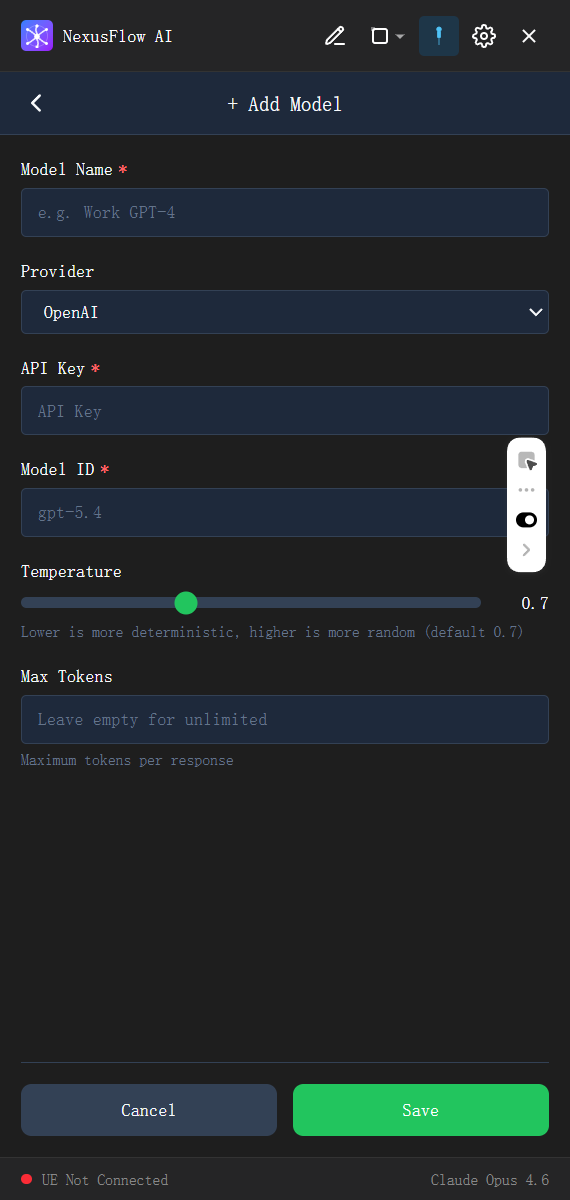
1. Select Provider
The following AI service providers are supported:
| Provider | Description |
|---|---|
| OpenAI | GPT series models |
| Anthropic | Claude series models |
| Google Gemini | Gemini series models |
| DeepSeek | DeepSeek series models |
| Zhipu GLM | Zhipu GLM series models |
| MiniMax | MiniMax series models |
| Qwen | Alibaba Qwen series models |
| Kimi | Moonshot Kimi series models |
| Custom | Custom API endpoint |
2. Basic Information
- Model Name (required): A custom name for easy identification
- API Key (required): Your service provider's API key
- Model Identifier (required): The specific model ID, e.g.,
gpt-5.4,claude-opus-4-6
3. Optional Settings
- Temperature: Controls response randomness. Slider range 0 – 2; lower values produce more deterministic responses
- Max Tokens: Maximum number of tokens per AI response
Anthropic Protocol Note
When using the Anthropic Messages API protocol, Max Tokens is required.
4. Custom Provider Configuration
When selecting Custom, you need to provide additional settings:
- API URL: Your custom API endpoint URL
- Communication Protocol: Select the protocol compatible with your target API
- OpenAI Compatible
- OpenAI Responses API
- Anthropic Messages API
- Google Gemini API
Agent Configuration
Configure the behavior of the AI assistant.
Max Iterations
Set the maximum number of tool invocation rounds the AI can perform in a single conversation. Range: 1 – 1000.
- The default value works well for most scenarios
- Complex Blueprint operations may require more iterations
- Setting it too low may prevent the AI from completing complex tasks
Response Language
Control the language the AI uses in its replies, independent of the interface language:
- Follow interface language: Uses the same language as the UI
- 简体中文 (Simplified Chinese)
- 繁體中文 (Traditional Chinese)
- English
TIP
You can set the interface to English while having the AI reply in Chinese, or vice versa.
Hotkeys
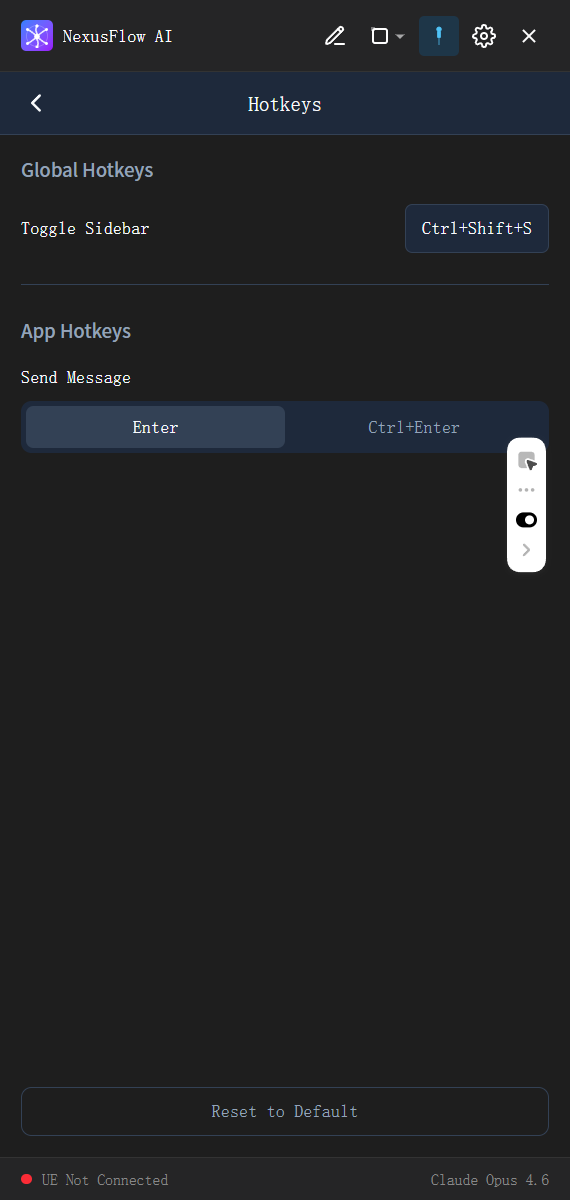
Customize NexusFlow's keyboard shortcuts.
Global Hotkeys
Shortcuts that work from any application:
- Toggle Sidebar: A custom key combination to quickly show or hide the NexusFlow sidebar
Click the hotkey input field, then press your desired key combination to record it.
Application Hotkeys
Shortcuts that only work within the NexusFlow window:
- Send Message: Choose Enter or Ctrl+Enter as the send shortcut
- Enter: Press Enter to send; Shift+Enter for a new line
- Ctrl+Enter: Press Ctrl+Enter to send; Enter for a new line
Reset to Default
Click the "Reset to Default" button to restore all hotkeys to their original values.
Appearance
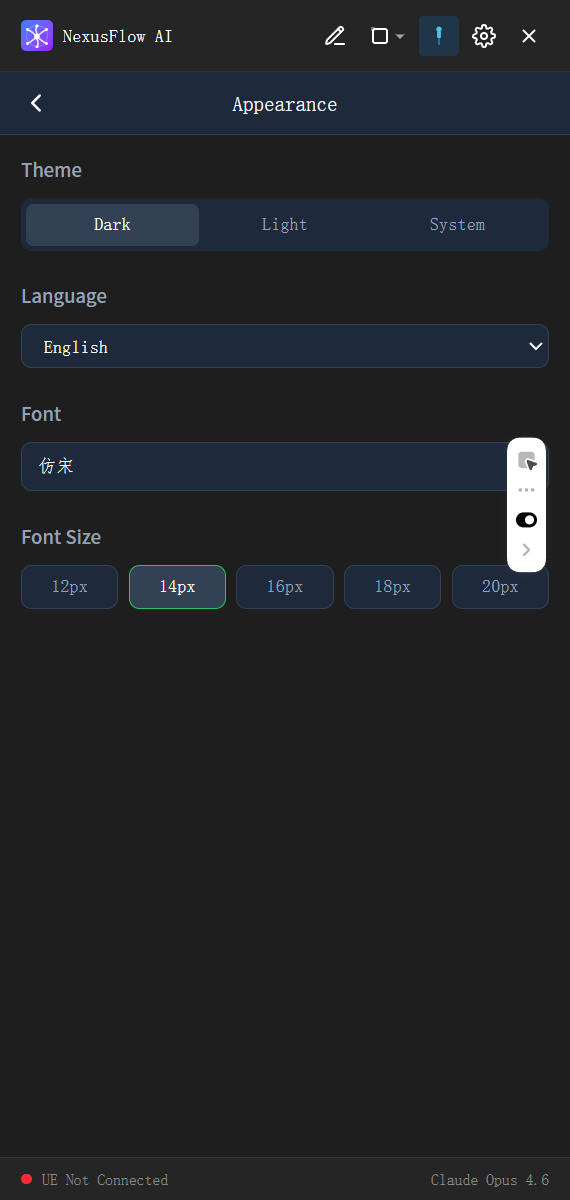
Personalize NexusFlow's visual appearance.
Theme
Three theme modes are available:
- Dark (default): VS Code Dark style — an eye-friendly dark theme
- Light: A bright, light theme
- Follow System: Automatically matches your Windows system theme
Language
Interface display language:
- Follow System: Automatically matches your OS language
- 简体中文 (Simplified Chinese)
- 繁體中文 (Traditional Chinese)
- English
Font
Click the font selector to open a full-screen font picker:
- Lists all fonts installed on your system
- Search box for quick filtering
- Each font previews in its own typeface
- Click to select
Font Size
Choose the interface text size from 5 options:
- 12px / 14px / 16px (default) / 18px / 20px
TIP
Appearance changes are previewed in real time and saved automatically — no manual confirmation needed.
About
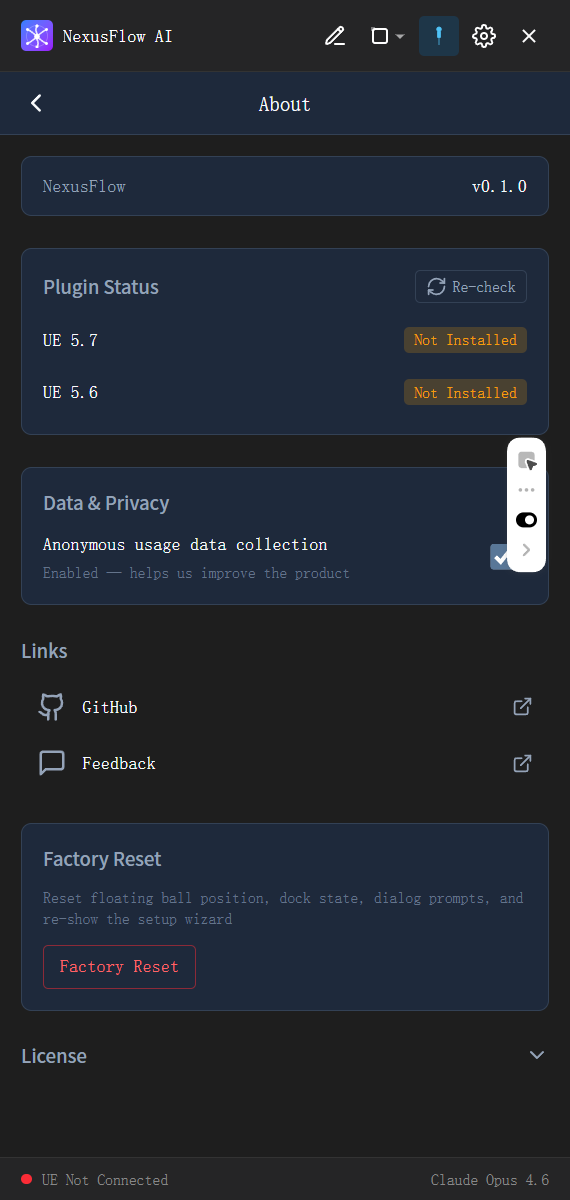
View application information and manage related settings.
Application Info
- Version: Current NexusFlow version
- Tauri Version: Underlying framework version
Plugin Status
Automatically detects Unreal Engine installations on your system and checks whether the NexusFlow plugin is correctly installed.
- Shows detected UE versions
- Shows plugin installation status
- Click "Re-detect" to refresh the status
Anonymous Analytics
Optional anonymous usage data collection to help improve the product. You can enable or disable this at any time.
Links
The following external links are provided (opened in your system browser):
- Official Website
- Documentation
- GitHub Repository
- Feedback
License
NexusFlow is open source under the MIT License. Click to expand and view the full license text.