
AI Chat
The core NexusFlow experience revolves around using AI chat to operate Unreal Engine Blueprints. This page covers every part of the chat interface and how to use it.
Floating Ball

The floating ball is NexusFlow's quick-access entry point on your desktop, always visible on top of other windows.
- Appearance: A circular button — blue-purple gradient when UE is connected, gray when disconnected — with a Nexus network pattern logo. A small red dot appears at the bottom-right when UE is not connected
- Click: Opens or switches to the AI chat sidebar
- Drag: Hold and drag to reposition; the ball automatically snaps to the nearest screen edge when released
- Close: Hover to reveal a close button (×) in the top-right corner; clicking it shows a confirmation dialog
- Hide: You can hide the floating ball entirely and restore it from the system tray icon
TIP
A movement of more than 5 pixels is treated as a drag. Short touches will still trigger a click to open the sidebar.
Sidebar Interface
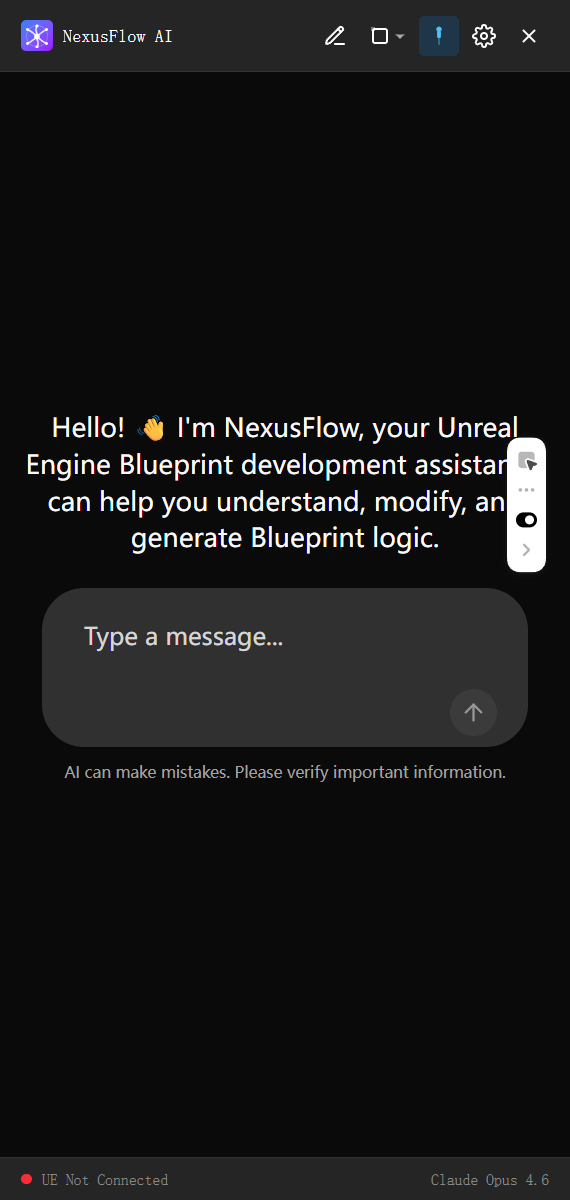
The sidebar is the main AI chat interface, divided into three areas:
Top Header
The header area contains the following controls:
| Element | Description |
|---|---|
| Logo + Title | Displays "NexusFlow AI"; appends the project name when connected to UE |
| New Chat | Start a new conversation (shows a confirmation dialog) |
| Mode Switch | Toggle window mode (Floating / Dock Left / Dock Right) |
| Quick Action | Pin-to-top button in floating mode; switch-direction button in docked mode |
| Settings | Gear icon — opens the Settings page |
| Close | Hides the sidebar |
In floating mode, you can hold and drag the header area to move the entire window.
Chat Area
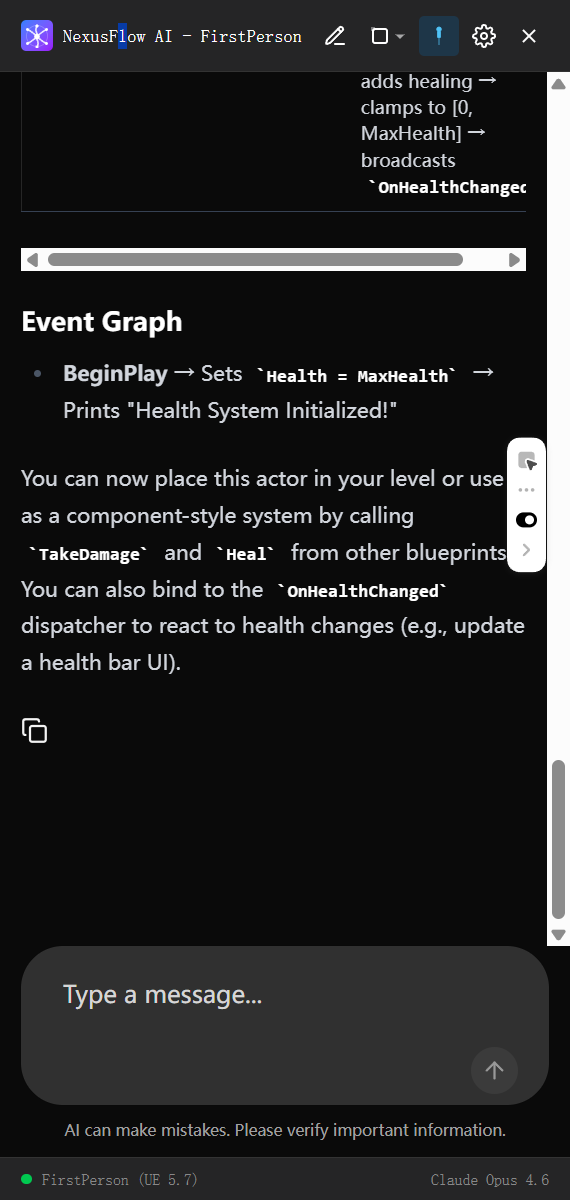
The main content area is where you interact with the AI:
- Message Display: Shows the conversation history between you and the AI
- Initial Message: On first open, the AI sends a multilingual self-introduction (based on your Agent response language setting)
- Tool Calls: When the AI performs Blueprint operations, you can see tool call status in real time
- Stop Generation: Click the stop button to interrupt the AI's response
Note
When the AI is actively executing a tool operation (e.g., modifying a Blueprint), it cannot be interrupted. Clicking stop at that point will show a toast message: "Tool is executing, cannot interrupt."
Bottom Status Bar
The status bar displays connection status and current model information:
- Connection Status: 🟢 Green dot means UE is connected (shows project name and UE version); 🔴 Red dot means disconnected
- Current Model: The right side shows the name of the currently active AI model
- Status Messages: Operational feedback (e.g., compilation results) appears as a temporary banner
Window Modes
The sidebar supports three window modes, selectable from the mode switch menu in the header:
Floating Window (Default)
An independent window that you can freely move and resize:
- Drag the header to reposition the window
- Use the pin button to keep the window always on top
- Best for scenarios where you need to view the UE Editor at the same time
Dock Left / Dock Right
The sidebar automatically attaches to the edge of the screen, similar to a VS Code sidebar:
- Occupies the full height of the screen on one side
- Drag the edge to adjust width
- A quick-action button lets you switch to the opposite side with one click
- Best for extended chat sessions
Quick Switch
In docked mode, the arrow button in the header quickly moves the sidebar to the other side of the screen.
Chat Capabilities
Natural Language Operations
Describe your needs in plain language, and the AI will automatically:
- Read the current Blueprint's structure and node information
- Modify the Blueprint as needed (add/remove/update nodes and connections)
- Create new Blueprint logic
- Manage variables, functions, and events
Automatic UE Context Sync
NexusFlow automatically syncs UE Editor context to the AI, including:
- Connection status and UE version
- Current project name
- Currently open Blueprint information
- Selected nodes and Actors
- Edit mode and active window
This means you don't need to manually tell the AI which Blueprint you're editing — it already knows.
Tool Call Tracking
When the AI needs to perform Blueprint operations, it calls the appropriate tools. In the chat, you'll see:
- Tool name and parameters
- Execution status (in progress / succeeded / failed)
- Result summary
New Chat
Click the New Chat button in the header to start a fresh conversation. Since the current version does not support chat history, starting a new chat clears the current conversation, so a confirmation dialog appears.
Stop Generation
While the AI is generating a response, click the stop button to interrupt it. Keep in mind:
- ✅ Can stop: While the AI is generating a text reply
- ❌ Cannot stop: While the AI is executing a tool operation (e.g., modifying a Blueprint)
System Tray
NexusFlow places a persistent icon in the Windows system tray (the area on the right side of the taskbar).
- Restore Floating Ball: If you've hidden the floating ball, right-click the tray icon to restore it
- Quick Access: Click the tray icon to quickly open the sidebar
Finding the System Tray
If you can't see the NexusFlow icon, click the up arrow (∧) on the taskbar to reveal hidden icons.
Next Steps
- UE Quick Menu — 17 AI operations across 4 entry points in the UE Editor
- Blueprint Operations — Detailed Blueprint operation examples and tips
- Settings — Customize window modes, hotkeys, and more